

Organization Setup
Configure and manage your enterprise organization in nRouter. Set up workspace resources, team member access, role permissions, budgets, and billing limits.
Last updated
Your nRouter organization is the top-level entity that owns all resources: teams, API keys, credits, guardrails, budgets, and analytics. This guide covers how organizations work and how to configure yours.
![Org-scoped dashboard at /[organization] — sidebar, top metrics, and the org name shown in the header](/_next/image?url=%2F_next%2Fstatic%2Fmedia%2Fdashboard-org-home.2_c_ecntiam2y.jpg&w=3840&q=75)
Organization Creation
An organization is automatically created when you sign up for nRouter. During the onboarding flow, you'll:
- Create your account — Sign up with email or OAuth
- Choose a plan — Select your plan (Pay as you go, Starter, Pro, Max, or Enterprise)
- Create your API key — Get your first
sk-nrouter-key - Invite your team (optional) — Add team members right away
Your organization is assigned a unique UUID that is used consistently across all nRouter systems. This same UUID identifies your organization in API responses, billing, analytics, and logs.
Your Organization
An organization is the single top-level tenant created for you at signup. It owns everything — teams, API keys, credits, guardrails, budgets, and analytics — and works the same whether you're a solo developer or a multi-member company. Start solo and invite team members whenever you're ready; there's no separate account "type" to switch between.
Organization Settings
![Settings · General tab — org name, slug, logo upload, and timezone at /[organization]/settings](/_next/image?url=%2F_next%2Fstatic%2Fmedia%2Fdashboard-settings-general.3y7vq6lr_9uhg.jpg&w=3840&q=75)
Access your organization settings from Settings in the dashboard sidebar.
General Information
| Setting | Description |
|---|---|
| Organization Name | Display name shown in the dashboard and team invitations |
| Organization Slug | URL-friendly identifier used in dashboard URLs |
| Organization Logo | Brand logo displayed in the dashboard header |
Data Policies
Configure how nRouter handles your data:
| Policy | Description |
|---|---|
| Data Retention | How long request logs and analytics data are stored |
| Data Processing | Whether nRouter can use your data for service improvement |
| Region | Preferred data processing region |
These policies apply to all requests made through your organization's API keys.
Branding
Customize the dashboard appearance for your organization:
- Logo — Upload your organization logo (displayed in the dashboard header)
- Organization name — Shown in the dashboard and in team member invitations
Organization Structure
Here's how resources are organized within your nRouter organization:
Organization
  ├── Members (Owner, Admin, Member, Viewer)
  ├── Teams
  │     ├── Team Members
  │     └── Team API Keys
  ├── API Keys (org-level or team-scoped)
  ├── Credit Balance
  ├── Budgets
  ├── Guardrails
  ├── Prompt Templates
  ├── A/B Tests
  └── Analytics & Logs
Resource Ownership
- Credits belong to the organization and are shared across all keys
- API keys can be org-level or scoped to a specific team
- Budgets can be set at the org, team, or key level
- Guardrails are configured at the org level and auto-apply to all requests
- Members are invited to the organization and optionally assigned to teams
Managing Your Organization
Viewing Organization Details
Your organization ID and current plan are visible in the Settings page. The organization ID is never echoed back on an API response — tenancy is resolved from the authenticated API key, not from anything on the wire. To tie a call back to your organization, log the x-nr-request-id header your client receives and look that id up in the dashboard request log, which records the organization, team, user and key the call was authenticated as.
Updating Settings
- Navigate to Settings in the sidebar
- Update the desired fields (name, slug, logo, data policies)
- Save your changes
One Organization Per Account
Each account belongs to exactly one organization, shown statically in the dashboard header — there is no org switcher and no switch-org flow. If you need to work in a different organization, create or join it under a separate account.
Plan and Billing
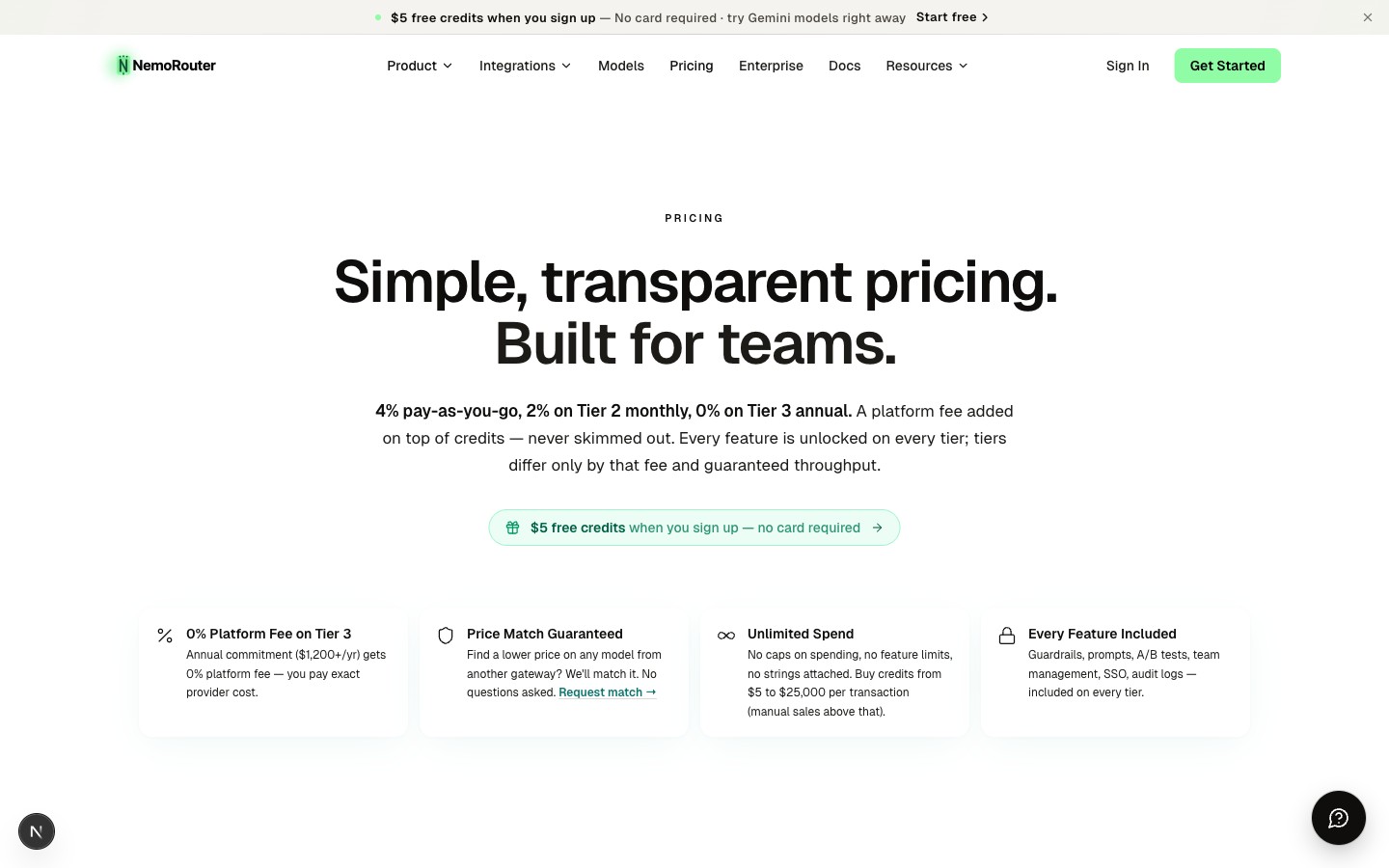
Your organization's plan determines your included monthly usage allowance and rate limits:
| Plan | Price | Monthly Usage Allowance (nrouter/auto) | Platform Fee on Credits | Org RPM/TPM |
|---|---|---|---|---|
| Pay as you go | $0/mo | None (credits only) | 4% on top, no minimum fee | 200 RPM / 200K TPM |
| Starter | $20/mo | $60/mo included | 4% on top | 500 RPM / 500K TPM |
| Pro | $50/mo | $100/mo included | 4% on top | 1,000 RPM / 1M TPM |
| Max | $200/mo | $400/mo included | 4% on top | 2,000 RPM / 2M TPM |
| Enterprise | Contact sales | Custom | Custom | Custom SLAs |
Every feature is available on every plan. Subscriptions are billed monthly and include a monthly usage allowance for nrouter/auto. The platform fee is charged on top of your credit purchase amount — you always receive 100% of the credits you buy. See the Pricing page as the live source for plan tiers and limits.
Manage your plan and billing from the Billing page in the dashboard.
Danger Zone
The organization settings page includes a danger zone for destructive actions:
- Delete Organization — Permanently deletes the organization and all associated data (keys, teams, credits, logs). This action is irreversible and requires confirmation.
Only organization owners can access the danger zone.
FAQ
Do I need to create my organization manually?
No. Your organization is created automatically when you sign up — during onboarding you just choose a plan, create your first sk-nrouter- API key, and optionally invite teammates. It works the same whether you're a solo developer or a multi-member company, so there's no separate account "type" to pick or switch between later.
Can I belong to more than one organization or switch between them?
No. Each account belongs to exactly one organization, shown statically in the dashboard header — there is no org switcher and no switch-org flow. If you need to work in a different organization, create or join it under a separate account.
Who can change organization settings?
Organization owners and admins can edit the general settings (name, logo, and data policies). Renaming the organization slug, managing billing, and deleting the organization are owner-only. Members and viewers can view settings but cannot change them.
How do credits and budgets work across my organization?
Credits belong to the organization and are shared across every API key, so all usage draws from one balance. Budgets are separate spending limits you can set at the org, team, or key level — see Budget Controls for how those ceilings work.
What determines my platform fee?
The platform fee on credit purchases is a flat 4% charged on top of your purchase amount, so you always receive 100% of the credits you buy: $100 of credits costs $104.00, and the $5 minimum costs $5.20. Every feature is available on every plan; subscription plans (Starter, Pro, Max) provide included monthly nrouter/auto usage allowances, higher organization rate limits, and extended log retention. See Pricing for live plan details.
Where do I find my organization ID, and where does it show up?
Your organization ID and current plan are shown on the Settings page. It is not returned on your API responses — the gateway resolves your organization from the authenticated API key and deliberately never echoes a tenancy value back on the wire. To correlate a request with your organization in your own logs, record the x-nr-request-id header returned with each call; looking that id up in the dashboard request log gives you the organization, team, user and key the request was authenticated as, along with its model and settled cost. See Observability for the request log and Analytics for spend by organization and team.
Do guardrails and data policies apply to my whole organization?
Yes. Guardrails are configured at the org level and auto-apply to all requests, and your data policies (retention, data-processing preference, and region) apply to every request made through your organization's API keys. Guardrails can additionally be scoped more tightly at the team or key level on top of the org defaults.
What's the difference between an org-level and a team-scoped API key?
An org-level key draws on organization resources directly, while a team-scoped key is owned by a specific team and is tracked and budgeted under that team. Both spend from the same shared organization credit balance; the scope mainly changes how spend is attributed and which budgets apply. See Team Management for setting up teams.
If I rename my organization or change the slug, do I need to update my code?
Renaming the organization only changes the display name shown in the dashboard and invitations, so your integration is unaffected. The slug is only used in dashboard URLs — it does not change your API key or endpoint, so your application code keeps working unchanged.
What happens when I delete my organization?
Deleting an organization permanently removes it and all associated data — keys, teams, credits, and logs. It is irreversible, requires an explicit confirmation, and only organization owners can access this action in the Settings danger zone.
Next Steps
- Team Management — Add members and configure roles
- Budget Controls — Set spending limits
- Authentication — Create and manage API keys
- Quick Start — Make your first API call
Billing & Credits
Understand nRouter billing, credit purchases, and auto top-up settings. Learn how prepaid credit balances settle requests and how to manage your invoices.
Team Management
Invite team members, assign role-based access permissions, and manage granular user privileges across workspaces and departments in your nRouter organization.