

Team Management
Invite team members, assign role-based access permissions, and manage granular user privileges across workspaces and departments in your nRouter organization.
Last updated
nRouter supports multi-member organizations with role-based access control. This guide covers how to invite members, assign roles, create teams, and manage permissions.
![Members page at /[organization]/people/members — member list, role chips, and the Invite Member action](/_next/image?url=%2F_next%2Fstatic%2Fmedia%2Fdashboard-team.3gwg2y2fokcbs.jpg&w=3840&q=75)
Roles
nRouter has four organization-level roles with progressively increasing permissions:
| Role | Dashboard Access | Create Keys | Manage Team | Manage Billing | Delete Org |
|---|---|---|---|---|---|
| Viewer | Read-only analytics and logs | No | No | No | No |
| Member | Full dashboard access | Yes (own keys) | No | No | No |
org_admin | Full dashboard access | Yes (all keys) | Yes | No (view only) | No |
| Owner | Full dashboard access | Yes (all keys) | Yes | Yes | Yes |
Role Details
Viewer — Can view analytics, logs, and usage data but cannot create API keys or modify any settings. Ideal for stakeholders who need visibility without control.
Member — Can create and manage their own API keys, view analytics, and use the playground. Cannot invite members, modify budgets, or change organization settings.
org_admin — Full management capabilities including inviting members (Viewer or Member level), removing members, creating budgets, configuring guardrails, and managing all API keys. Cannot delete the organization, change billing, or change an existing member's role — role changes are reserved for the Owner.
Owner — All org_admin capabilities plus the ability to delete the organization and transfer ownership. Every organization has exactly one owner (the person who created it).
Inviting Members
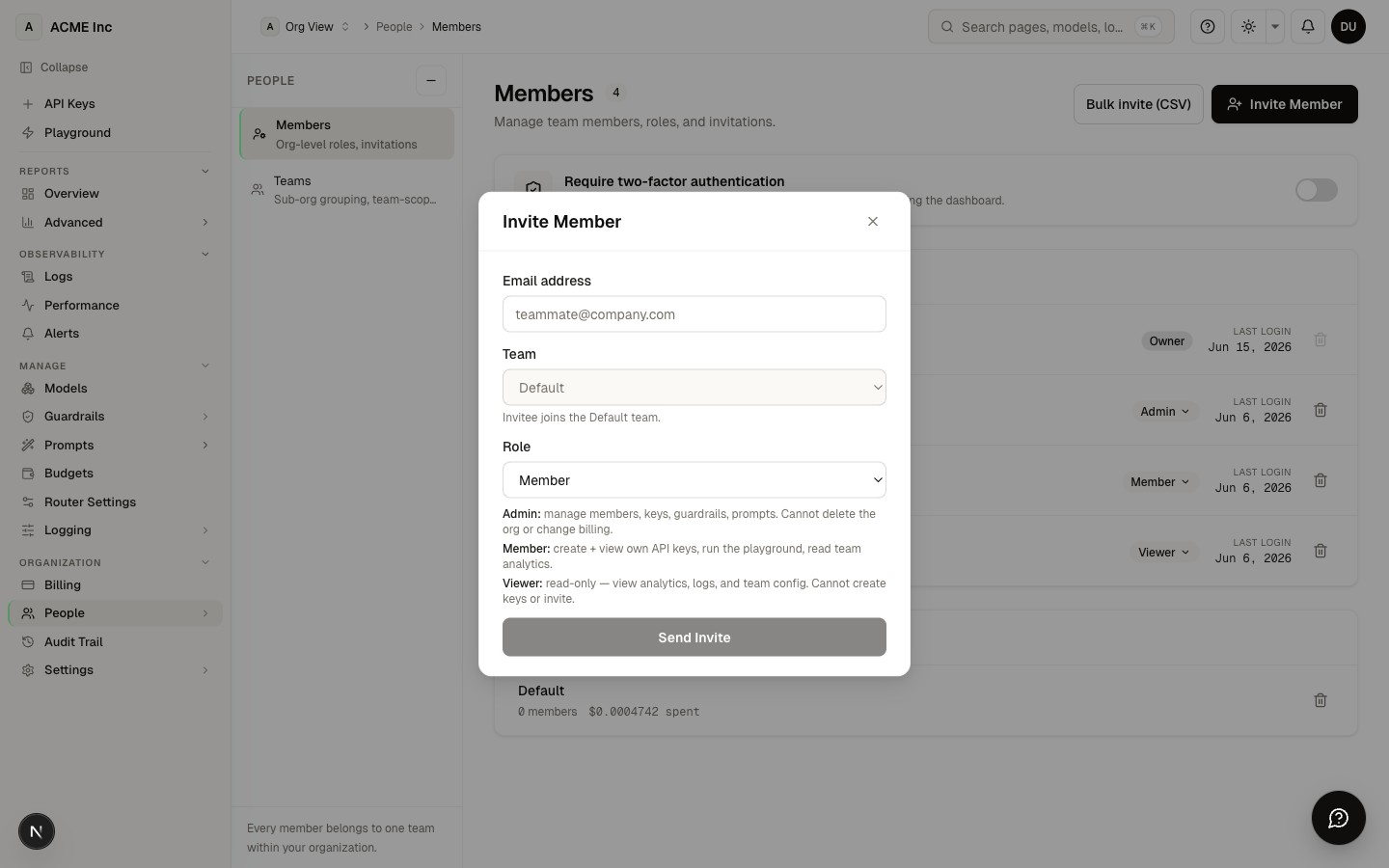
To invite a new team member:
- Navigate to People → Members (
/[organization]/people/members) in the dashboard sidebar - Click Invite Member
- Enter the person's email address
- Select a role — Owners can invite at Viewer, Member, or Admin; Admins can invite Viewer or Member only (they cannot grant the Admin role)
- Click Send Invite
The invitee will receive an email with a link to join your organization. The invitation expires after 7 days if not accepted.
Invitation States
| State | Description |
|---|---|
| Pending | Invitation sent, not yet accepted |
| Accepted | Member has joined the organization |
| Expired | Invitation was not accepted within 7 days |
You can resend or cancel pending invitations from the People → Members page.
Creating Teams
Teams are sub-groups within your organization. They're useful for separating API keys, budgets, and usage tracking by department, project, or environment.
To create a team:
- Go to People → Teams (
/[organization]/people/teams) - Click Create Team
- Enter a team name
Members are added afterward: open the new team from its detail page and use Add members to assign existing organization members into it.
Team-Scoped Resources
When you create a team, you can scope these resources to it:
| Resource | Scoping |
|---|---|
| API Keys | Keys can be assigned to a team, limiting who can manage them |
| Budgets | Set spending limits per team |
| Usage Analytics | View usage broken down by team |
| Guardrails | Guardrail assignments follow a scope hierarchy: key > team > org |
Managing Members
Changing Roles
Changing a member's role is reserved for the Owner. Admins can invite and remove members, but only the Owner can promote or demote an existing member — Admins see each member's role as a read-only badge, not an editable dropdown.
As the Owner:
- Go to People → Members
- Find the member
- Click the role dropdown
- Select the new role
Role changes take effect immediately. The member's existing sessions will reflect the new permissions on their next page load.
Moving Members Between Teams
Every member belongs to exactly one team within your organization at a time. There is no self-service team switch — an Owner or Admin moves a member from People → Members. The member's keys and team-scoped budgets follow their new team.
Removing Members
To remove a member from your organization:
- Go to People → Members
- Find the member
- Click Remove
- Confirm the removal
When a member is removed:
- Their dashboard access is revoked immediately
- API keys they created remain active (they belong to the organization, not the individual)
- To revoke their keys, delete them separately from the API Keys page
Transferring Ownership
Every organization always has at least one owner — a last-owner guard prevents the final owner from being removed or demoted, so the org can never be left ownerless. If you need to hand ownership to another member, contact support@nrouter.ai and we'll make the change.
Team Structure Examples
Small Team (2-5 people)
Organization
  ├── Owner: CTO
  ├── Admin: Tech Lead
  └── Members: 2-3 Developers
No teams needed — everyone shares the same API keys and budget.
Medium Team (5-20 people)
Organization
  ├── Owner: CTO
  ├── Admin: Engineering Manager
  ├── Team: Backend
  │     ├── API Keys: backend-prod, backend-staging
  │     └── Budget: $500/month
  ├── Team: Frontend
  │     ├── API Keys: frontend-prod
  │     └── Budget: $200/month
  └── Team: Data Science
        ├── API Keys: ml-pipeline, experiments
        └── Budget: $1,000/month
Teams separate concerns and budgets by department.
Enterprise (20+ people)
Organization
  ├── Owner: VP Engineering
  ├── Admins: Team Leads
  ├── Team: Product (Members + Viewers)
  ├── Team: Platform (Members)
  ├── Team: ML Research (Members)
  ├── Team: QA (Viewers)
  └── Team: Finance (Viewers — billing visibility only)
Granular teams with role-based access. Finance gets Viewer access for cost monitoring without the ability to create keys or make API calls.
Best Practices
- Use descriptive key names — Name keys after their purpose (e.g.,
prod-backend-api,staging-ci-pipeline) so you can identify usage in analytics - Set team budgets — Prevent any single team from consuming the entire credit balance
- Use Viewer role for stakeholders — Give managers and finance teams read-only access instead of full Member access
- Audit regularly — Review the People → Members page periodically to remove inactive members and revoke unused invitations
- Separate environments — Create different teams or keys for development, staging, and production
FAQ
Who can invite new members to my organization?
Only Admins and Owners can send invitations. Members and Viewers can use the dashboard but cannot invite anyone or manage the team.
What roles are available and what can each one do?
There are four organization roles with increasing permissions: Viewer (read-only analytics and logs), Member (full dashboard plus their own API keys), org_admin (everything, including inviting members, managing budgets and guardrails, and all keys), and Owner (all org_admin rights plus deleting the organization and transferring ownership). Every organization has exactly one Owner — the person who created it.
Can I give someone read-only access just to monitor cost and usage?
Yes. Assign the Viewer role — they can see analytics, logs, and usage data but cannot create API keys, make API calls, or change any settings. This is the recommended access level for managers and finance stakeholders who need visibility without control.
How long does an invitation stay valid, and can I resend or cancel it?
An invitation expires after 7 days if it isn't accepted. You can resend or cancel any pending invitation from People → Members, where each invite shows a Pending, Accepted, or Expired state.
What happens to a removed member's API keys?
Removing a member revokes their dashboard access immediately, but any API keys they created stay active — keys belong to the organization, not the individual. If you want those keys to stop working, delete them separately from the API Keys page.
Can a member belong to more than one team, and how do I move someone?
Each member belongs to exactly one team within your organization at a time, and there is no self-service team switch. An Owner or Admin moves a member from People → Members; the member's keys and team-scoped budgets follow them to the new team.
How do team budgets interact with my billing and credits?
You can set a spending limit per team so no single team can consume your entire credit balance. Budgets are managed by Admins and Owners; Members and Viewers cannot change them. See Budget Controls for how team and key limits are configured.
Do teams affect which guardrails apply to my requests?
Yes. Guardrail assignments follow a scope hierarchy of key > team > org, so a key-level guardrail takes precedence over a team-level one, which takes precedence over an organization-level one. Assigning guardrails to a team lets you apply different content and safety rules per department or project.
Who can change a member's role, and how quickly does it take effect?
Only the Owner can change an existing member's role — Admins can invite and remove members but not re-role them. Role changes apply immediately: the member's existing sessions pick up the new permissions on their next page load, with no need to log out and back in.
Can I transfer ownership of my organization to another member myself?
Not through the dashboard yet. A last-owner guard prevents the final Owner from being removed or demoted so the organization can never be left ownerless; to hand ownership to someone else, contact support@nrouter.ai and the team will make the change.
Next Steps
- Organization Setup — Configure your organization settings
- Budget Controls — Set spending limits per team or key
- Authentication — API key management
Organization Setup
Configure and manage your enterprise organization in nRouter. Set up workspace resources, team member access, role permissions, budgets, and billing limits.
Organization Settings
Manage organization workspace settings, team branding, audit privacy controls, enterprise SSO security policies, and default localization preferences.