

Logging In
Sign in to your nRouter dashboard using secure authentication methods including passwords, email magic links, SMS phone verification, and enterprise SAML SSO.
Last updated
nRouter offers several ways to sign in. Pick whichever fits your security posture — they all land you in the same dashboard.
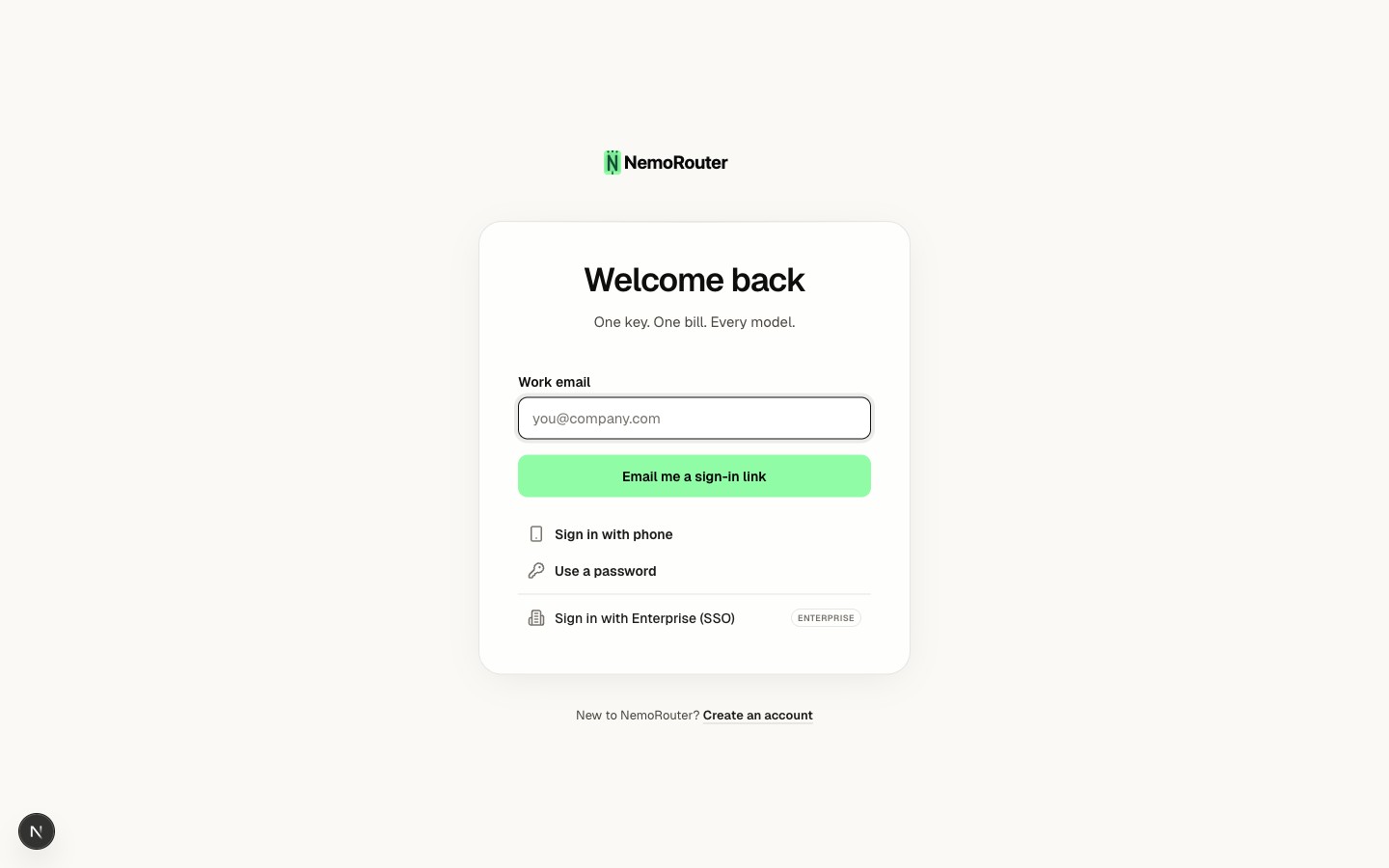
Sign-in methods
The login page at /login has a tab for each method:
| Method | What you provide | Notes |
|---|---|---|
| Email + password | Your email and password | The classic flow. Password must meet the minimum-length policy (at least 8 characters). |
| Email magic link | Just your email | We email you a one-time sign-in link (valid for 1 hour). No password needed. |
| Phone OTP | Your mobile number | Available only when phone sign-in is enabled. We text you a code. See Phone Verification. |
| Enterprise SSO | Your work email | Redirects to your organization's identity provider (SAML/OIDC). |
For privacy, the magic-link and phone flows always say "if an account exists, we've sent a link/code" — they never reveal whether an email or number is registered.
Failed attempts & lockout
To protect your account, repeated failures are throttled:
- After several failed password attempts you'll hit a short cooldown (about 30 seconds) before you can try again.
- After repeated cooldown cycles, the password tab is disabled and you're nudged toward the magic-link, phone, or SSO methods instead.
- A CAPTCHA appears after a few failed attempts and must be solved before the form submits.
All authentication failures return the same generic "Invalid email or password" message — this is deliberate, so an attacker can't tell a wrong password from a non-existent account.
Two-factor authentication
If you've enrolled an authenticator app, you'll be prompted for a 6-digit code after your password is accepted. See Two-Factor Authentication to set it up.
Where you land after signing in
nRouter resolves your organization membership and sends you straight to your dashboard at /{your-org-slug}. If you haven't finished onboarding yet, you're routed to the onboarding flow to pick a plan and create your first key.
Trouble signing in?
| Symptom | Fix |
|---|---|
| Password is correct but rejected | Confirm it meets the minimum-length policy (at least 8 characters); older passwords below the policy must be reset. |
| "Too many login attempts" | Wait for the cooldown, or use the email magic-link tab instead. |
| Never received the magic link | Check spam; links expire after 1 hour — request a fresh one. |
| SSO loops back to login | Your work email may not be mapped to an SSO connection yet — contact your org admin. |
Next steps
- Passwords & Reset — Change or recover your password
- Two-Factor Authentication — Add a second factor
- Phone Verification — Link and verify a mobile number
Creating an Account
Sign up for an nRouter account — enter credentials, confirm your email address, configure your organization workspace, and select your subscription plan.
Passwords & Reset
Learn about nRouter password security standards, NIST complexity guidelines, and step-by-step instructions to securely reset a forgotten account password.